May 11, 2026
How to Set Up Your Google Business Profile From Scratch
Author
Whether you've never touched it or you claimed it three years ago and moved on — here's how to build a profile that Google can actually read, trust, and rank.
Maybe you've never set up a Google Business Profile at all. You've been running your business on word of mouth, referrals, a Facebook page, and pure hustle — and you know you probably need to deal with this at some point.
Or maybe you did set one up. A few years ago. You filled out some fields, uploaded a photo, and left. You haven't thought about it since.
Both situations land you in the same place: Google doesn't have enough clear, current, structured information to confidently put your business in front of someone searching for what you do.
That's not a judgment on the quality of your work. It's a gap — and it's a fixable one. This post walks through every field that matters, in the order it makes sense to tackle it.
One thing worth knowing before we start: your Google Business Profile is no longer just a Google Maps tool. When someone asks ChatGPT, Perplexity, or Google's own AI Overviews to recommend a plumber, salon, or contractor near them, those systems read structured business data — your categories, your services, your location — to decide who to name out loud. A complete, accurate profile is increasingly how AI-powered search decides who gets the recommendation. Which means everything we cover here matters more than it did two years ago.
What a Google Business Profile Actually Is
Your Google Business Profile — often shortened to GBP — is the listing that appears on Google Search and Google Maps when someone searches for your business or a service you provide. It includes your business name, phone number, hours, photos, reviews, services, service areas, and updates.
It is not your website. It is not a social media page. It is a listing that Google controls the format of — and that you can claim, verify, and fill in. Think of it as your business's entry in Google's directory, except you get to write most of what goes in it.
It is also the single most important free visibility tool a local business has. Nothing else you can do at zero cost has as much direct impact on whether you show up when someone nearby searches for what you do.
If you haven't read about how Google decides who ranks locally, that post lays out the full picture. This one is about building the foundation.
Step One
Claim Your Profile — or Create It
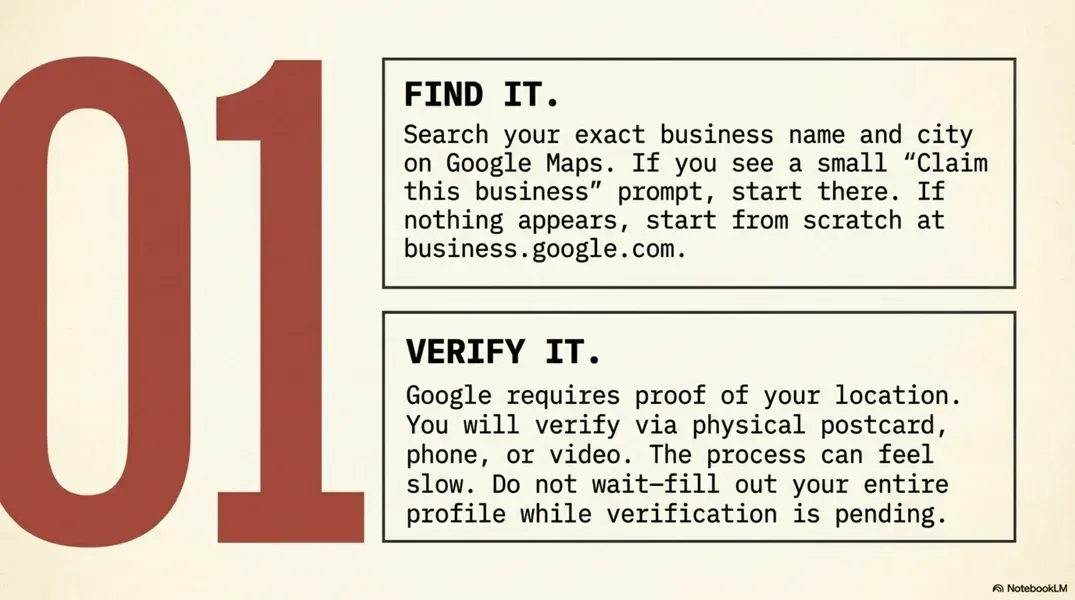
Before you create anything, search for your business on Google Maps. Type your exact business name and city. Your business may already exist as an unclaimed listing — Google sometimes creates basic entries from public data. If you see your business with a small "Claim this business" prompt, start there rather than creating a duplicate.
If nothing comes up, go to business.google.com and create a new listing from scratch. You'll be asked for your business name, category, location, and contact information.
Either way, you'll need to verify the listing — and Google's verification options have evolved. Depending on your business type, you may be asked to verify by postcard (a physical card mailed to your address, which takes several days), by phone, by video, or through an automated call. The process can feel slow. Don't let that stop your momentum — fill out everything you can while verification is pending.
One practical note: if you're a service-area business — meaning you go to your customers rather than having them come to you — you can list your service areas instead of, or in addition to, a physical address. More on that in Step Five.
click to enlarge
Step Two
Categories vs. Services — These Are Not the Same Thing
This is the step where most business owners — and honestly, even experienced marketers — make a mistake. Categories and services are two completely separate fields in your Google Business Profile. They live in different places in the dashboard. They tell Google different things. And it is very easy to confuse them.
Here's what actually happens: when you first set up a profile and choose a primary category — say, "Plumber" — Google sometimes prompts you to add items underneath it that look like subcategories. Those items are actually your
services. They are not secondary categories. You can spend twenty minutes building out what feels like a complete category structure and never actually add a secondary category at all. The profile looks full. It is structurally incomplete.
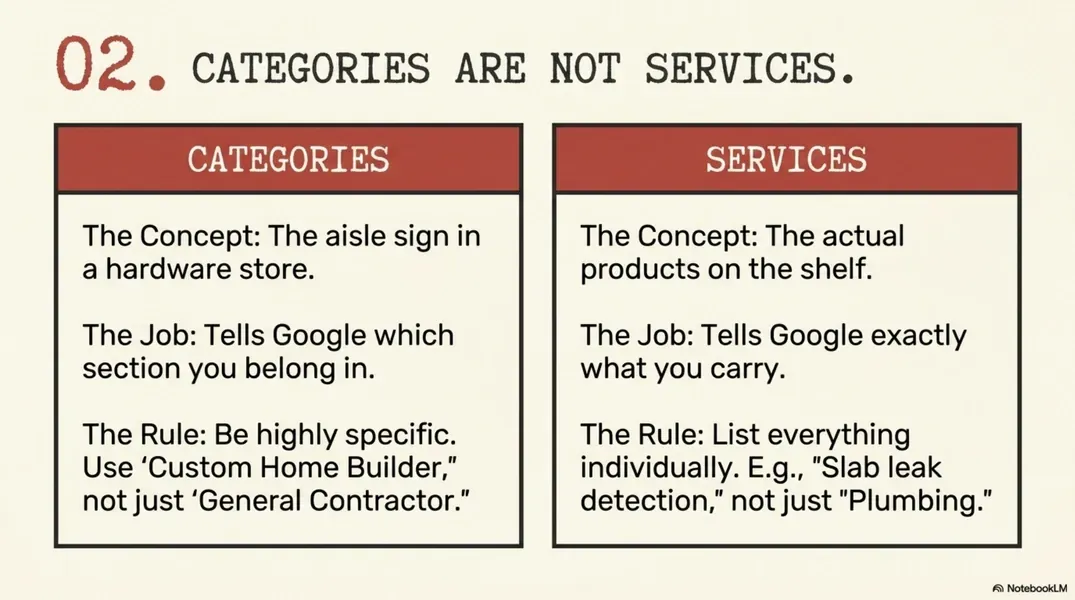
Categories are the aisle sign in a hardware store — they tell Google which section you belong in. Services are the actual products on the shelf — they tell Google exactly what you carry.
Categories: What They Are and How to Choose Them
Your primary category is the single most important label on your entire profile. Google uses it to determine what types of searches your business is eligible to appear in. Choose the most specific, accurate description of your core business — not the broadest one.
"Air Conditioning Contractor" is stronger than "HVAC Contractor" if cooling is the majority of your work. "Custom Home Builder" tells Google more than "General Contractor" if that's truly your specialty. "Glass & Mirror Shop" is more useful than "Home Improvement Store." The goal is precision, not breadth.
Secondary categories are additional business-type labels that also describe you — not a list of tasks, but separate descriptions of what your business
is. A plumber who also handles water treatment might add "Water Treatment Supplier." An electrician doing EV charger installations might add "Electric Vehicle Charging Station." A contractor who does both residential remodeling and commercial build-outs might carry both categories. These are found in the "Add more categories" field, separate from where services live.
Why this matters for AI search
When someone asks ChatGPT or Perplexity "who installs tankless water heaters in Wesley Chapel," those systems read your category data to match your business to the query. A vague primary category makes you invisible to that kind of specific recommendation — regardless of how many reviews you have.
Services: What They Are and Where to Add Them
The services section is where you build your menu — the specific things you actually do. This is separate from categories. You'll find it in the Google Business Profile dashboard under "Products & Services" or directly under the "Services" tab, depending on your business type.
This is covered more fully in Step Four. For now: know where it lives, and know that it is not the same field you filled out when you chose your categories.
Step Three
Write a Business Description That Actually Works
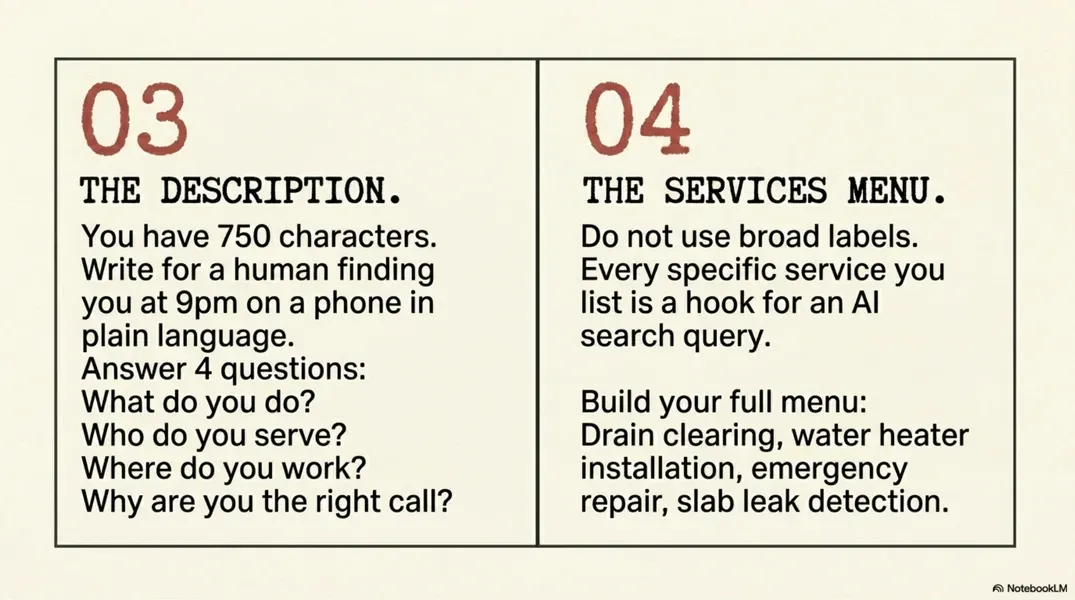
The business description field has a 750-character limit and one job: tell someone who has never heard of you exactly what you do, who you do it for, and where. That's it.
It is not a tagline. It is not a mission statement. It is not the place to talk about how passionate you are about customer service. Google does not rank you for sincerity — it ranks you for clarity.
A description that works answers four questions in plain language: What do you do? Who do you serve? Where do you work? What makes you the right call? Name your services, name your cities — Land O' Lakes, Wesley Chapel, Lutz, Odessa, New Tampa — and make it readable by a person who found you at 9pm on a phone and needs to decide in thirty seconds.
You can include city names and service types naturally without stuffing. The algorithm responds better to clear, honest writing than to sentences that sound like they were written for a robot. Write for the person. The robot will follow.
Step Four
Add Your Services — All of Them, Specifically
The services section is where most Google Business Profiles are weakest. Business owners either skip it entirely or add one or two broad entries and move on. Both approaches leave visibility on the table.
Every service you list is a signal Google can match to a search query. The broader your entry, the fewer queries you catch. "Plumbing" as a single service entry tells Google almost nothing useful. "Drain clearing," "water heater installation," "slab leak detection," "emergency plumbing repair," "garbage disposal replacement" — each one of those is a separate opportunity to surface for a specific search.
Go through every service you actually offer and list each one individually. You can add a short description under each if you want to — that description field is read by both Google and, increasingly, by AI search tools building their understanding of what your business does.
For service businesses in the Tampa Bay area: think about how your customers actually search. They don't always search "HVAC contractor." They search "AC not cooling," "replace AC unit Wesley Chapel," "mini split installation Land O' Lakes." The more specific your service entries, the more surface area you give Google to connect those searches to your profile.
AI search and service specificity
Perplexity and ChatGPT don't just recommend business names when someone asks a local service question — they pull specific capability signals. A profile with a fully built services section can appear in answers to very specific queries. A profile that lists only broad categories cannot. This is one of the clearest ways that GBP optimization now extends beyond Google Maps.
click to enlarge
Step Five
Set Your Service Areas
If you are a service-area business — you drive to your customers — the service areas field is how you tell Google where you actually work. This matters because Google matches those areas to the location a customer is searching from.
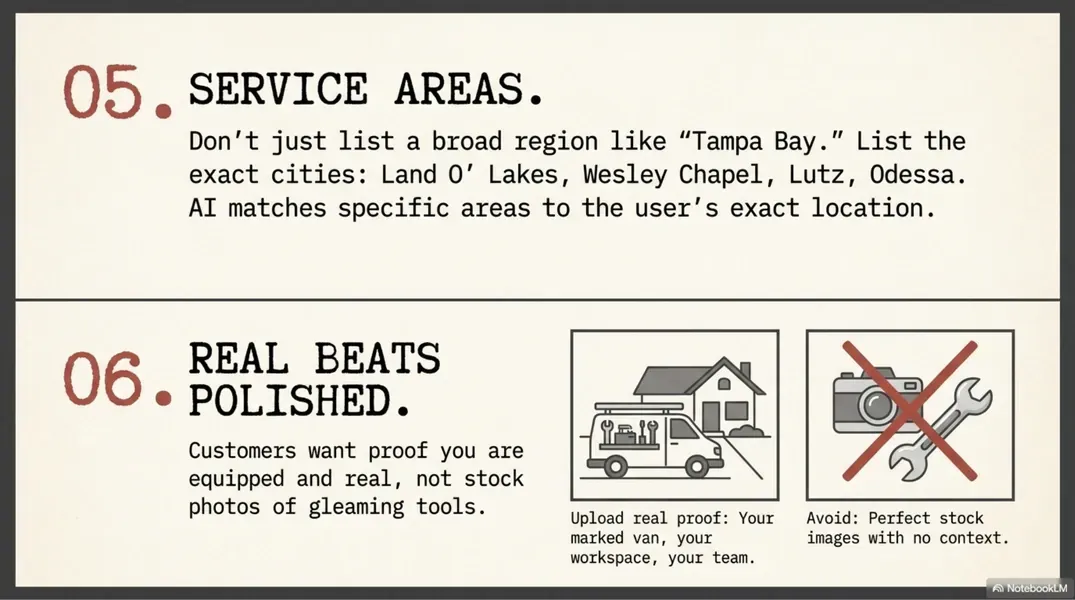
Do not list "Tampa Bay area" and leave it there. Be specific. Add the individual cities and communities: Land O' Lakes, Wesley Chapel, Lutz, Odessa, New Tampa, Zephyrhills, Dade City, Pasco County, Hillsborough County. Each specific entry is a match opportunity.
If your business operates from a home address and you'd prefer not to display it publicly, you can hide your address and show only your service areas. Google allows this for service-area businesses and it won't hurt your visibility as long as your service areas are well-defined.
One rule of thumb: only list areas you genuinely serve. Adding cities you rarely work in may look like padding, and if Google notices a mismatch between your claimed areas and your actual activity, it can work against you.
click to enlarge
Step Six
Photos — Including the Ones You've Been Avoiding
Before we talk about what to upload, let's name something that doesn't get said enough.
A lot of local business owners — especially solo operators and small crews — feel awkward about putting photos of their work trucks, their vans, their tools, or their home office on Google. It feels too ordinary. Too humble. Not impressive enough to be worth showing. Like you should wait until you have something better.
You should not wait. And here's why.
Google's own documentation on business photos is genuinely vague. It lists photo types like "At work," "Team," and "Common areas" without ever spelling out what that means for a contractor, a plumber, an AC tech, or a marketing consultant working from a home office. So most people guess wrong — they upload one decent exterior shot or a stock-adjacent image of tools on a clean background, and consider it done.
What Google is actually looking for — and what customers respond to — is proof of realness. Here's what that looks like in practice:
- Your work vehicle, van, or truck. For a service-area business, this is one of the most important photos you can upload. A marked, branded van sitting in a driveway in Wesley Chapel tells Google and every customer who finds your profile: this is a real operation with real equipment that actually shows up. Don't be shy about it. That van is proof.
- Your tools and equipment. For contractors, electricians, plumbers, HVAC techs — your equipment is evidence of capability. A well-organized tool setup or a piece of specialty equipment signals professionalism to customers who know what they're looking at. It also signals to Google that your profile reflects a real working business.
- Your workspace or home office. If you're a service provider who works remotely — a marketing agency, bookkeeper, photographer, consultant — your workspace is your storefront. A clean desk, a second monitor, a branded detail. Show it. It's the equivalent of what a contractor's van is for a field-based business.
- Mid-job photos. A photo of someone actually working — measuring, wiring, painting, installing, mixing — is more trustworthy than a polished finished result with no context. The in-between shot shows the process, which is what customers are really buying.
- Your team. Even if the team is two people. Faces build trust faster than almost anything else on a profile.
- Before and after. Classic for a reason. Show the problem, show the solution.
Here is the reframe, simply stated: the customer who searches for a plumber or an electrician at 10pm on a Tuesday is not looking for a polished brand shoot. They are looking for proof that you are real, that you are equipped, and that you will show up. A photo of your marked service van in a Land O' Lakes driveway does more work for that customer than a perfect stock image of gleaming tools on a white background ever will.
Real beats polished. Every time.
For launch, aim for at least five real photos. One should show your vehicle, equipment, or workspace. One should show a person. One should show actual work.
The full photo strategy is covered in the hub post — this step is about getting past the hesitation and getting something real up before the profile goes live.
Step Seven
Set Your Hours and Contact Information
This step is quick but it has to be right.
Your hours should be accurate — including holiday hours, which you can add separately. A customer who drives to your location based on listed hours and finds it closed will leave a review you don't want. A profile that shows incorrect hours also loses Google's trust over time.
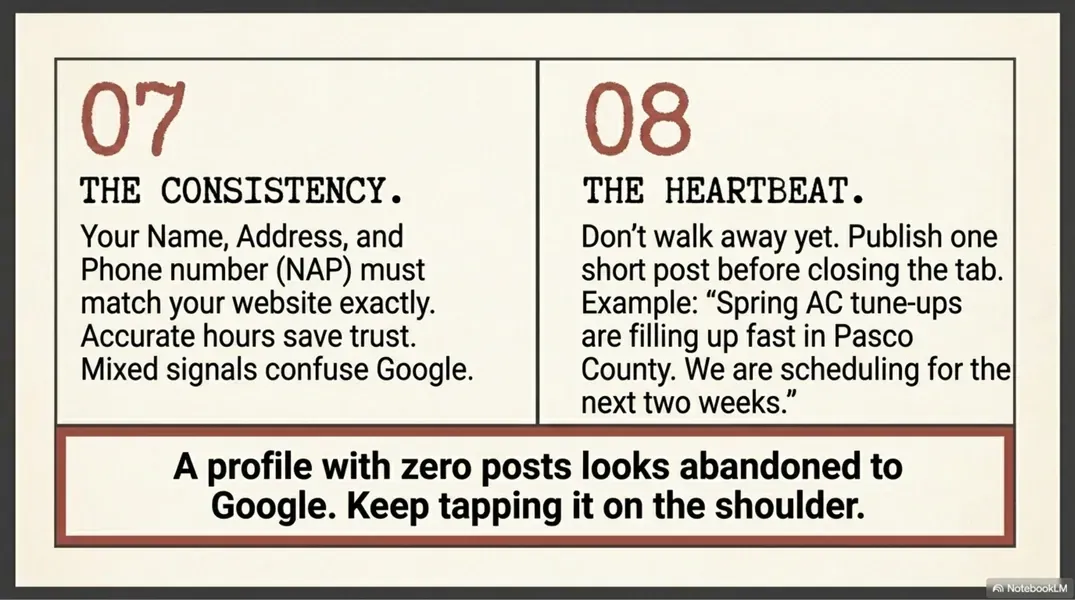
Your phone number should match the number on your website exactly. This is part of NAP consistency — Name, Address, Phone — and it matters because Google cross-references your business information across the web. A phone number that looks slightly different on three different platforms creates mixed signals. Use the same format everywhere.
Your website link should go to a page that actually works — ideally your homepage or a relevant service landing page, not a broken link or a page under construction. Check it after you add it.
click to enlarge
Step Eight
Post One Update Before You Walk Away
A profile with zero posts looks abandoned — even if you just set it up twenty minutes ago. Google reads activity as a signal of a live business. A brand-new profile with no posts looks exactly the same as one that was filled out two years ago and forgotten.
Before you close the tab, write one short update. It does not need to be clever. It can be a recent job, a seasonal reminder, a common customer question, a quick description of a service. Five sentences is enough. Something like:
"Spring AC tune-ups are filling up fast in Land O' Lakes and Wesley Chapel. If you haven't had your system checked before summer, now is the right time. We're scheduling appointments for the next two weeks."
That's all it takes to tell Google: this profile is live, this business is active, this area is served. Tap the shoulder. Then keep tapping it — once or twice a week going forward is the cadence that keeps a profile looking alive to both Google and the customers who find it.
Setup Is the Floor, Not the Ceiling
Photos are not just decoration — they are proof. They show that your business is real, show your work, show your team, and show that you are active right now. Customers look at photos before they call, and Google also watches how people interact with them. If people click, scroll, and spend time looking, those are engagement signals.
Good photos for local businesses include:
- Your team on the job.
- Before-and-after photos.
- Finished projects.
- Service vehicles.
- Tools and materials.
- Storefront or office photos.
- Behind-the-scenes work.
- Happy customers, with permission.
- Local job-site photos.
Stock photos do not build the same trust. A real photo of your work in Land O’ Lakes or Wesley Chapel is stronger than a perfect stock image of people pretending to work. Real beats polished.
Your GBP Setup Checklist
- Claim existing listing or create new one at business.google.com
- Complete verification (postcard, phone, or video)
- Set primary category — specific, not broad
- Add secondary categories in the categories field (not under services)
- Write a clear, plain-language business description
- Build out your full services list — specific entries, not broad labels
- Add all service areas by city name
- Upload at least 5 real photos — vehicle, team, work, workspace
- Set accurate hours including holiday hours
- Confirm phone number matches your website exactly
- Add working website link
- Publish one update post before you close the tab
I'm Gosia, owner of Crafted Media Lab in Land O' Lakes. I help local service businesses in Pasco and Hillsborough County build Google Business Profiles that actually rank — and keep them alive so the phone keeps ringing.
If you've set it up but you're still not showing up where you should — or you'd rather have someone tell you exactly what's holding the profile back — that's what the Google Maps visibility review is for. I'll look at what's there, tell you what's missing, and tell you what to fix first.
Request your visibility review → Contact Us
This post is part of the Local Visibility Foundation Series from Crafted Media Lab. Related reading: Why Most Tampa Bay Businesses Don't Show Up on Google Maps — And What to Fix First.